Key Takeaways
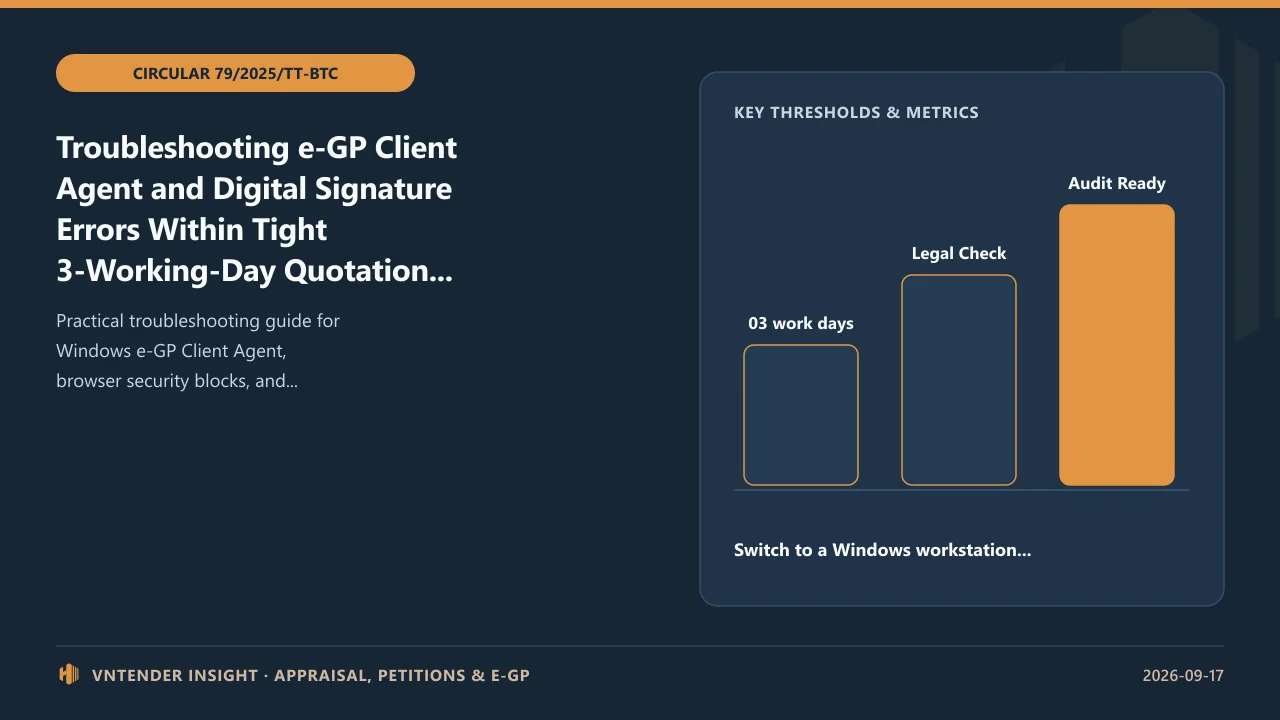
- Windows Baseline: Perform all encrypted e-GP downloads and token signing on Windows running the latest Client Agent.
- Three Quick Checks: Valid token certificate, unblocked Client Agent background port, and clean ASCII attachment filenames.
- 4-Hour Safety Buffer: Submit quotes well ahead of cutoff to absorb any token or helpdesk checks within the 3-day window.
01Deadline Exposure Within 3-Working-Day e-GP Windows
With minimum quotation windows shortened to 3 working days for ordinary commercial goods under Decree 349/2026/ND-CP, even a few hours of workstation downtime on the final afternoon can cost vendors a compliant submission. The most frequent culprits are file-download blocks and digital-signing failures tied to the e-GP Client Agent.
02Fixing OS Incompatibility, Client Agent & Token Signing Hangs
First, operating-system incompatibility trips up many sales teams attempting to sign or extract secured quotation packages from mobile phones or macOS laptops. Full encryption and cryptographic upload workflows on e-GP run reliably on Windows desktops using updated Chrome or Edge browsers paired with the official e-GP Client Agent release.
Second, silent spinner hangs during signing usually stem from local port or certificate glitches. Operators should check three items immediately: confirm the USB-token certificate is inserted, active, and valid; restart the background Client Agent tray service if blocked by antivirus firewalls; and strip special punctuation or overly long Unicode paths from attached PDF or Excel filenames.
03Clean File Packaging & Pre-Cutoff Submission Hygiene
On the Project Owner side, preventing vendor drop-offs starts with clean document packaging: upload searchable PDFs paired with unlocked, lightweight Excel specification schedules well under portal per-file size limits.
For reliable execution, vendors should download tender files on day one and upload signed quotation drafts at least 4 hours prior to cutoff, leaving adequate buffer for e-GP helpdesk intervention if certificate synchronization fails.
Quick Troubleshooting Table for e-GP Quotation Submission Errors
| Observed Portal Symptom | Common Root Cause | Immediate Workstation Fix |
|---|---|---|
| Attachment download button unresponsive | Mobile/macOS browser or missing Client Agent | Switch to Windows Chrome/Edge with updated Client Agent |
| Signing spinner stalls without PIN prompt | Local service port blocked by antivirus firewall | Restart Client Agent service with Administrator privileges |
| Upload rejected due to file path/name error | Long Unicode or special-character filenames | Rename file to short ASCII hyphens and optimize PDF size |
| Certificate mismatch warning | Renewed USB token not synced to portal profile | Update public certificate serial inside account settings first |
Five-Step Rapid Fix for e-GP Download & Signing Failures
- Switch to a Windows workstation running updated Chrome or Edge instead of mobile phones or macOS.
- Verify the e-GP Client Agent tray icon is active and matches the latest release published on the portal.
- Re-seat the USB digital signature token, confirm certificate expiry, and whitelist Client Agent in local firewall rules.
- Rename attached quotation PDFs to short ASCII filenames with hyphens and optimize file size within portal limits.
- Complete digital signing and submission upload at least 4 working hours prior to RFQ expiration.
Legal Basis & Regulatory Scope
Circular 79/2025/TT-BTC dated 4 August 2025; Decree 214/2025/ND-CP (amended by Decree 349/2026/ND-CP dated 9 September 2026).